

Subscribe to Our Events Calendar
Subscribing will put all of our events directly on your calendar so you never have to miss anything!! To register for an event you will still have to login to our website but we are working on trying to make this as seamless as possible so please bear with us. Instructions for different calendar systems are below – please let us know if you need more support.
It is best /easier to do this from a desktop or laptop b vs a tablet or mobile device.
Please note: Calendar updates may not appear instantly. Google Calendar, Outlook, and Apple Calendar control how often they refresh subscribed calendars.
Instructions are below for:
Google Calendar
Outlook Calendar
Apple Calendar
iphone Calendar (please note you may also have to do this even if you do one of the above)
Samsung/Android phone calendar
Google Calendar
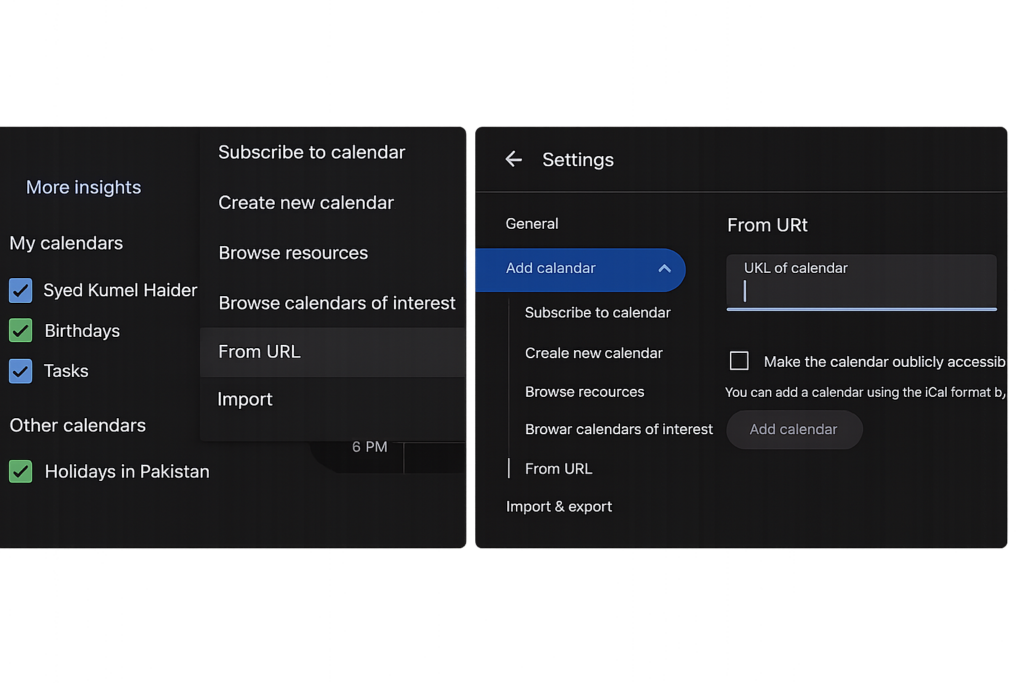
Subscribe using Google Calendar
- Open Google Calendar.
- On the left side, find Other calendars.
- Click the + icon.
- Select From URL.
- Paste this calendar link:
- Click Add calendar.
Your subscribed events will now appear in Google Calendar.
Outlook Calendar
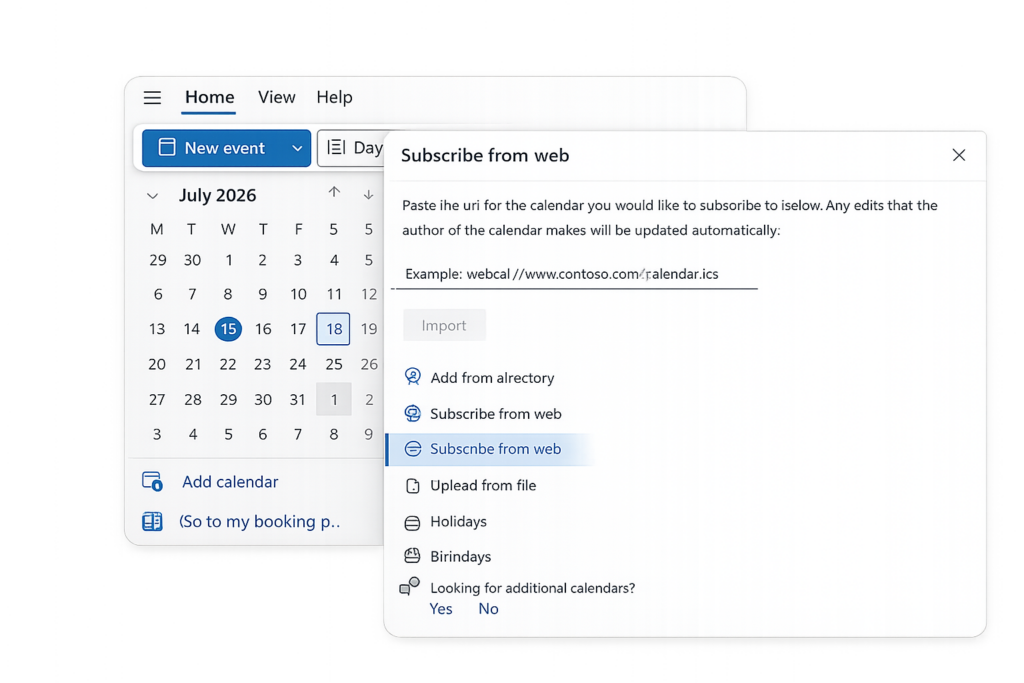
Subscribe using Outlook Calendar
- Open Outlook Calendar.
- Click Add calendar.
- Select Subscribe from web.
- Paste this calendar link:
- Enter a calendar name, such as MMTCP Alumni Events.
- Click Import or Subscribe.
Your subscribed events will now appear in Outlook Calendar.
Apple Calendar
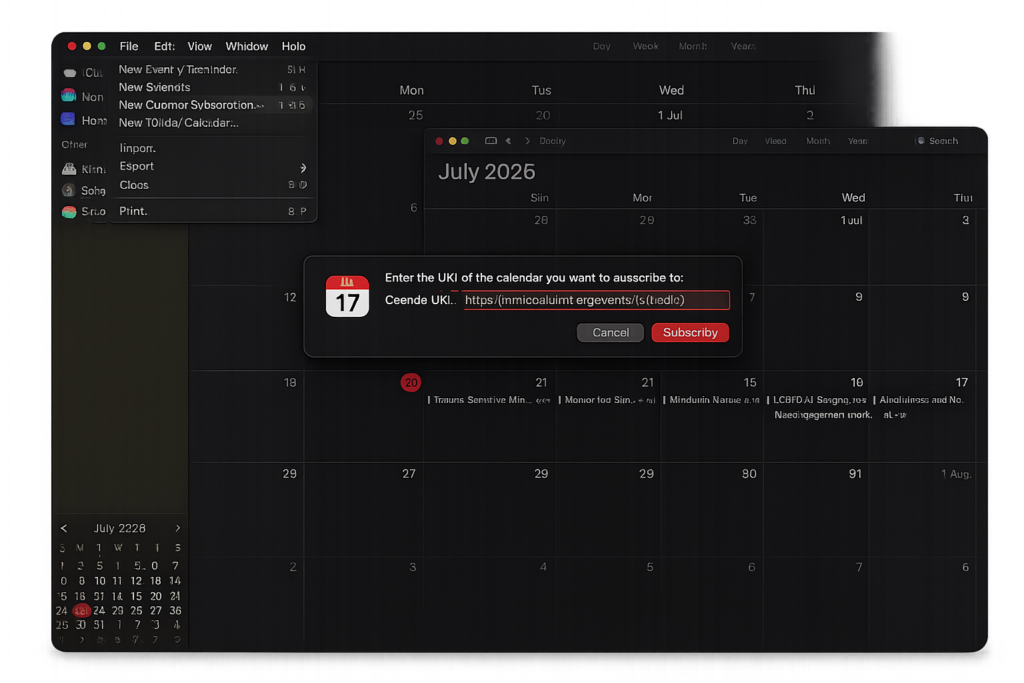
Subscribe using Apple CalendarOn Mac
- Open Apple Calendar.
- Go to File → New Calendar Subscription.
- Paste this calendar link:
- Click Subscribe.
- Enter a calendar name, such as MMTCP Alumni Events.
- Choose your preferred refresh setting.
- Click OK.
iPhone Calendar
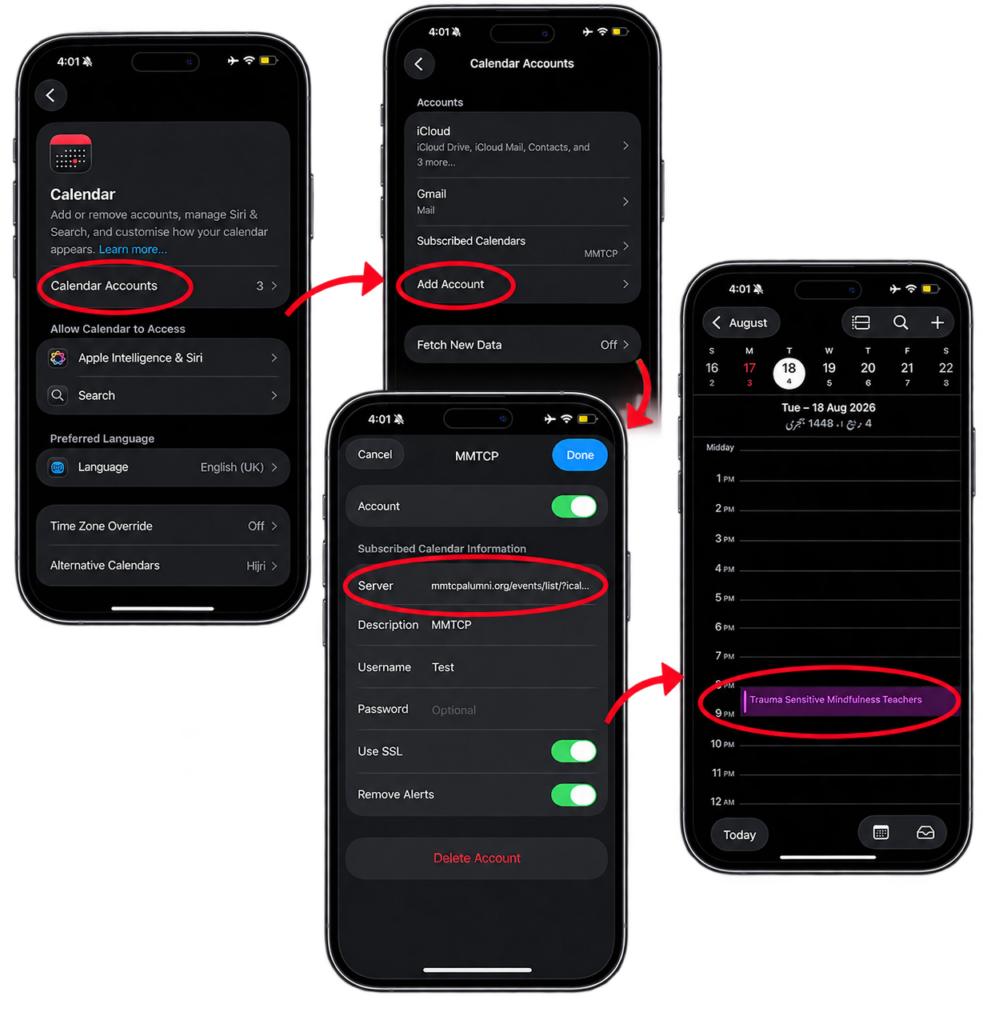
Add iCal Link to iPhone Calendar
- Open Settings on your iPhone.
- Scroll down and tap Apps.
- Tap Calendar.
- Tap Calendar Accounts.
- Tap Add Account.
- Select Other (at the bottom).
- Tap Add Subscribed Calendar.
- Paste your iCal subscription link in the Server field: